What began as the application portfolio management with the ability to create and link applications, is now being expanded towards architecture management. The February 24, 2026 Bpanda release introduces the first functions that bring this extended feature to life. We’re kicking off with ArchiMate® (the language for architecture management); you can now find ArchiMate® elements alongside BPMN 2.0 in Bpanda. The first release also contains exciting reports to help you as Process Manager gain deeper insights from your processes. This means you can also use Bpanda for managing your processes and not just creating them. You can find detailed information about this new feature in the next release notes. We are still busy working away at new features, such as ArchiMate® Import/Export, which will be coming soon.
Have fun checking out the new features and we would love to hear some feedback from you at wecare@mid.de.
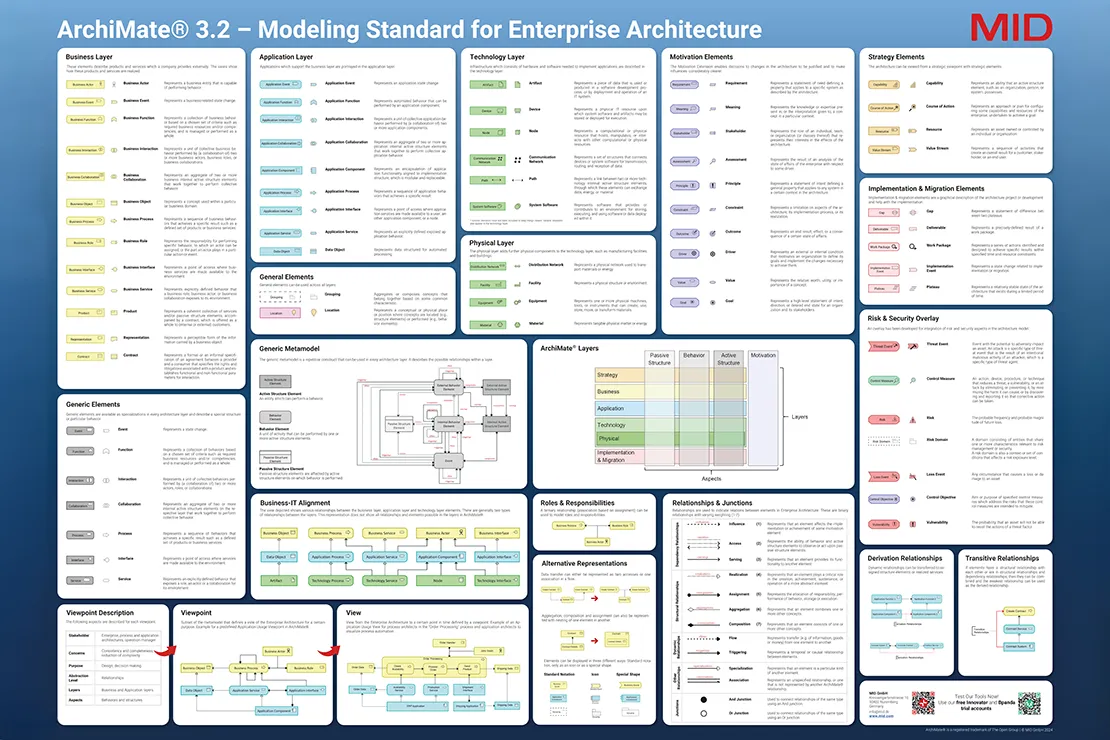
ArchiMate® Poster as Overview of Elements
All ArchiMate® 3.2 elements are now available for you to use in Bpanda. You can (de)activate the ones you want in “Architecture Settings” under “Manage Process Space”. This also contains a description of the architecture elements and what they can be used for. The icons and colors used correspond to the official ArchiMate® layers and elements. We recommend requesting our free ArchiMate® 3.2 poster (DE/EN) either as a PDF digital copy or as an A0 printed poster for a detailed overview of the elements and relationships. The poster explains all elements and gives you a better understanding of the architecture language used in Bpanda.
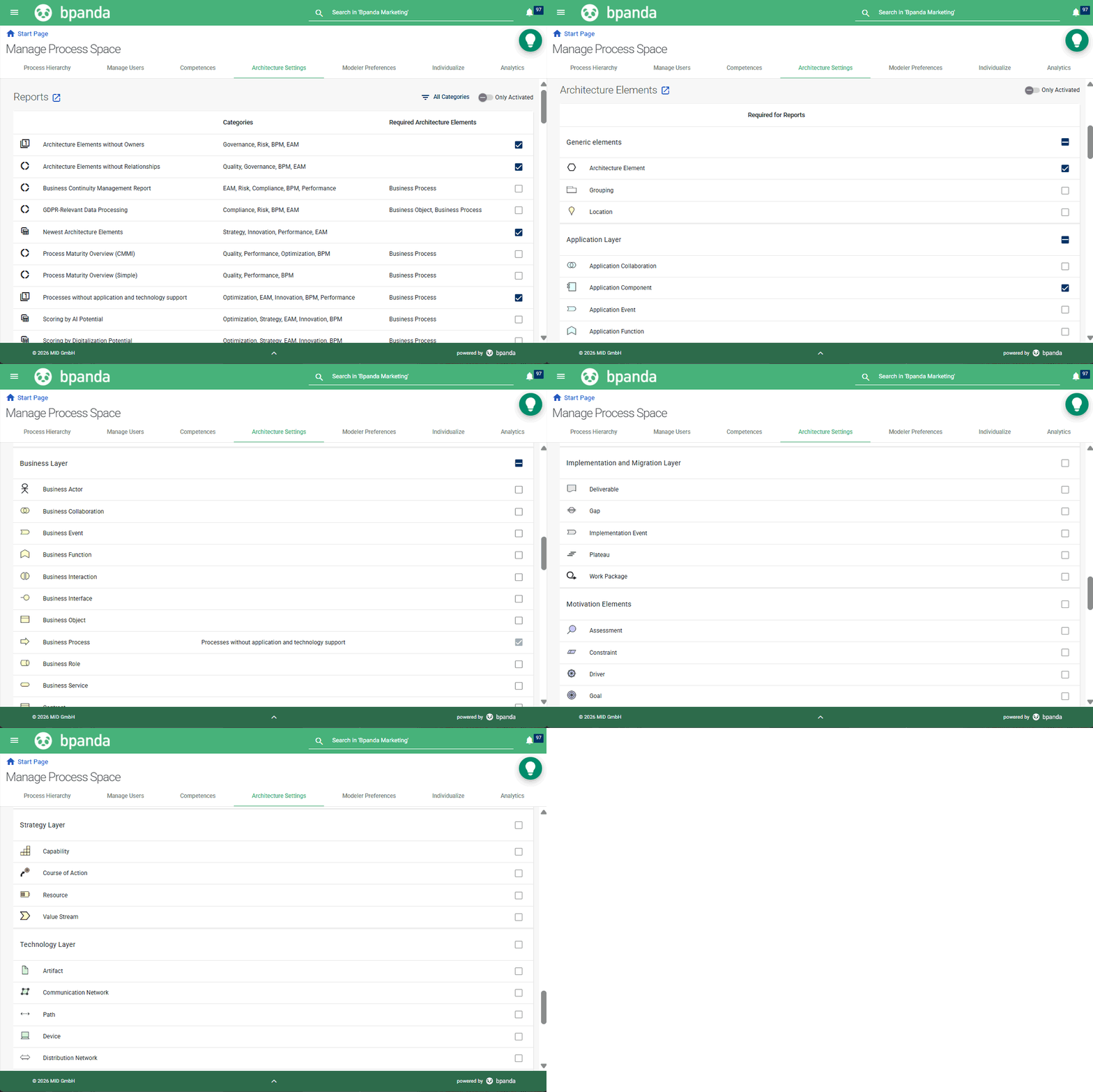
Manage Process Space: Architecture Settings
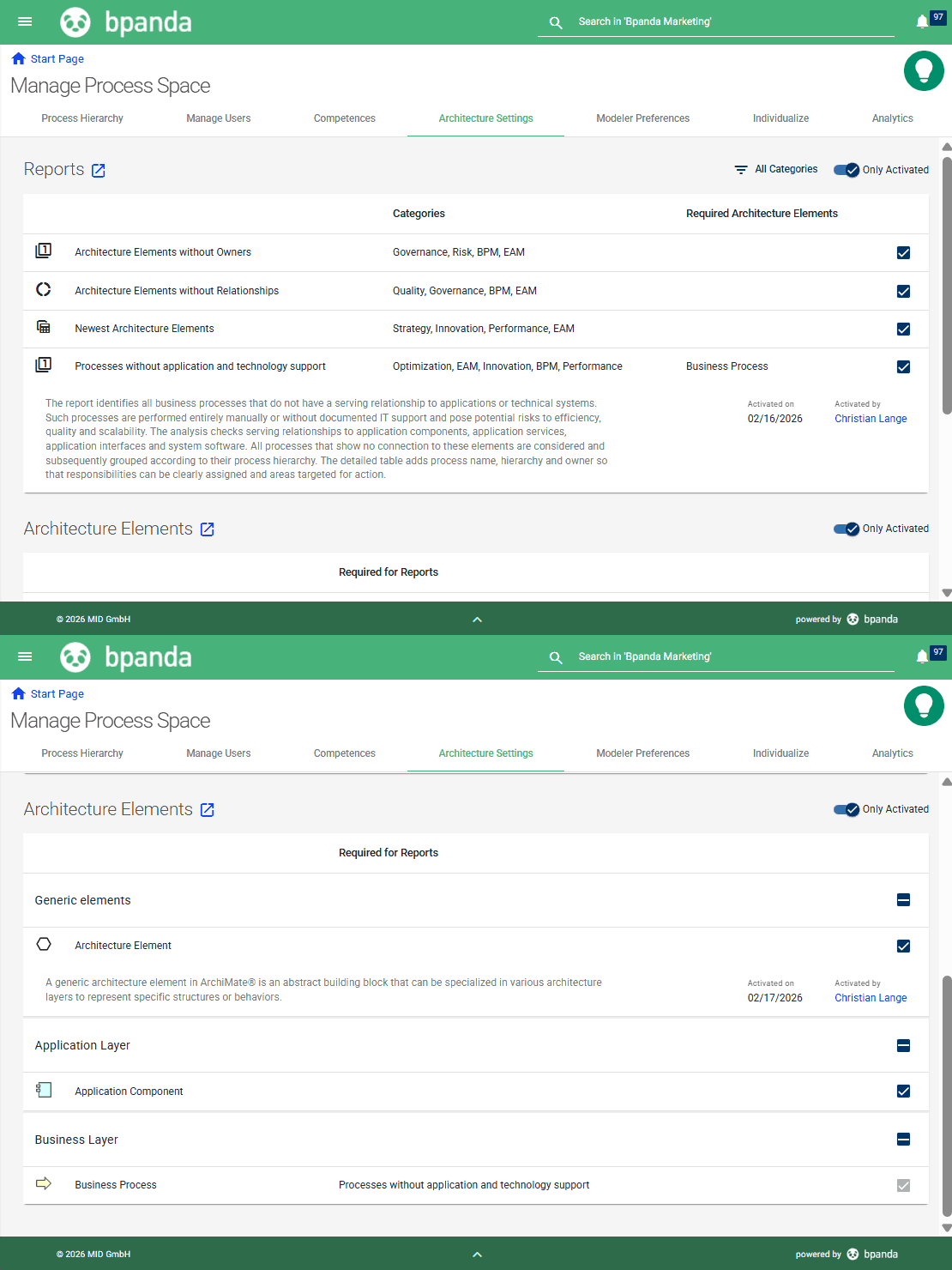
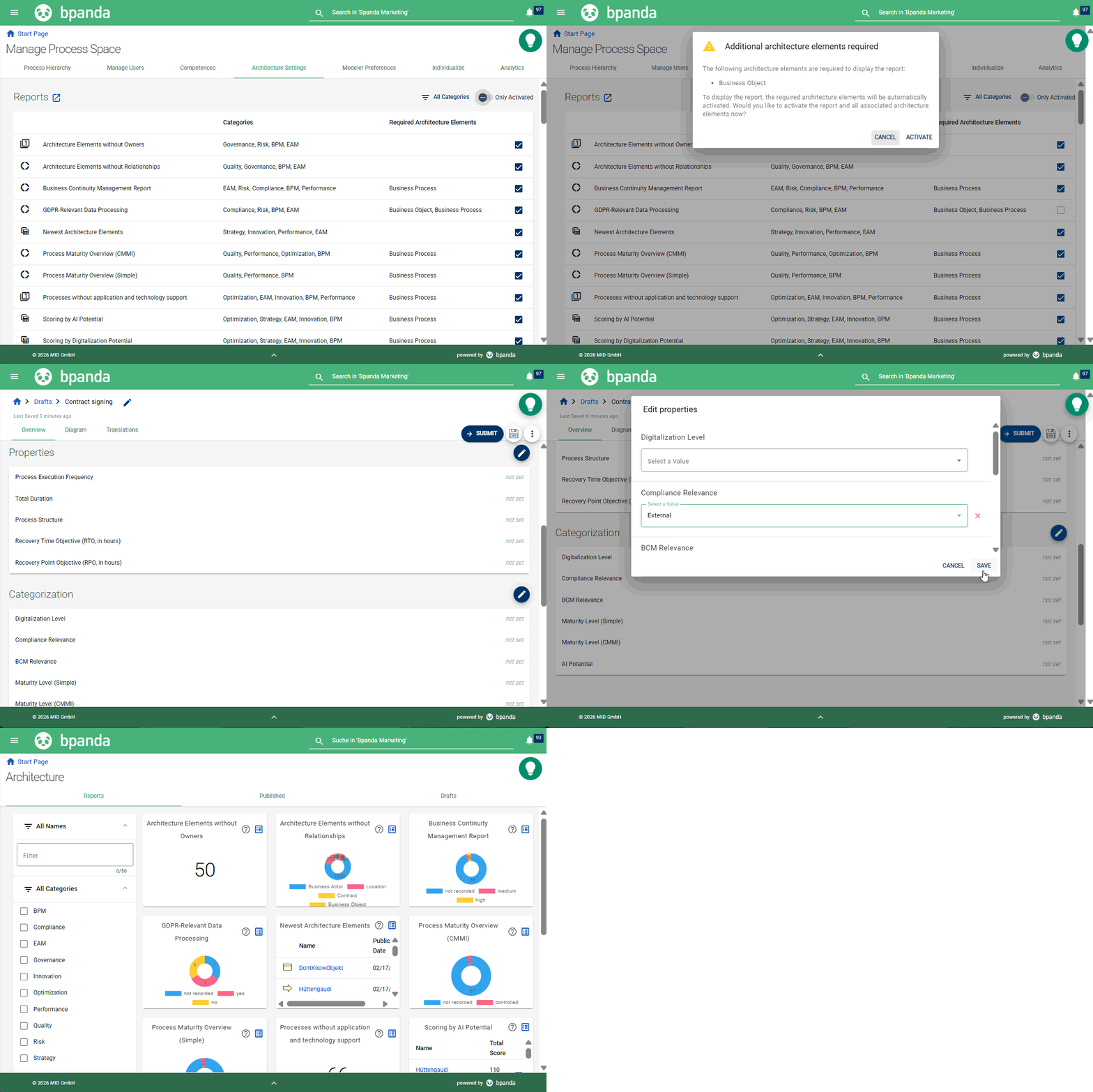
Don’t worry if you have little or no experience with ArchiMate® and Enterprise Architecture. The aim of the new feature is to carry out specific reports about processes, keeping in line with the motto “what do you want to know about your processes/architecture?”. We will be adding new reports to Bpanda; these reports might require new information in the form of architecture elements. These elements won’t be automatically activated until you need them for one of your activated reports in Bpanda. You can find all architecture settings in the new tab under “Manage Process Space”. Four reports and three architecture elements have been activated in your process space to get you started. Of course you can activate other reports in the settings or, if you know what you are doing with ArchiMate®, then go ahead and activate some more architecture elements.
Architecture: Default Reports and Architecture Elements
Our February 24 release brings with it the possibility of automatically converting all your stored applications into application components – the correct architecture element. All links to processes you have already made will be retained. All your processes are also created as business processes (architecture element). The third default element is the generic architecture element. You can use this to start with and then change or specify the type at a later stage. The following reports are activated in your Bpanda process space by default and don’t need any additional architecture elements: Architecture elements without relationships, architecture elements without owners, newest architecture elements, processes without application and technology support. There is a brief description for each report so you know what it can be used for.
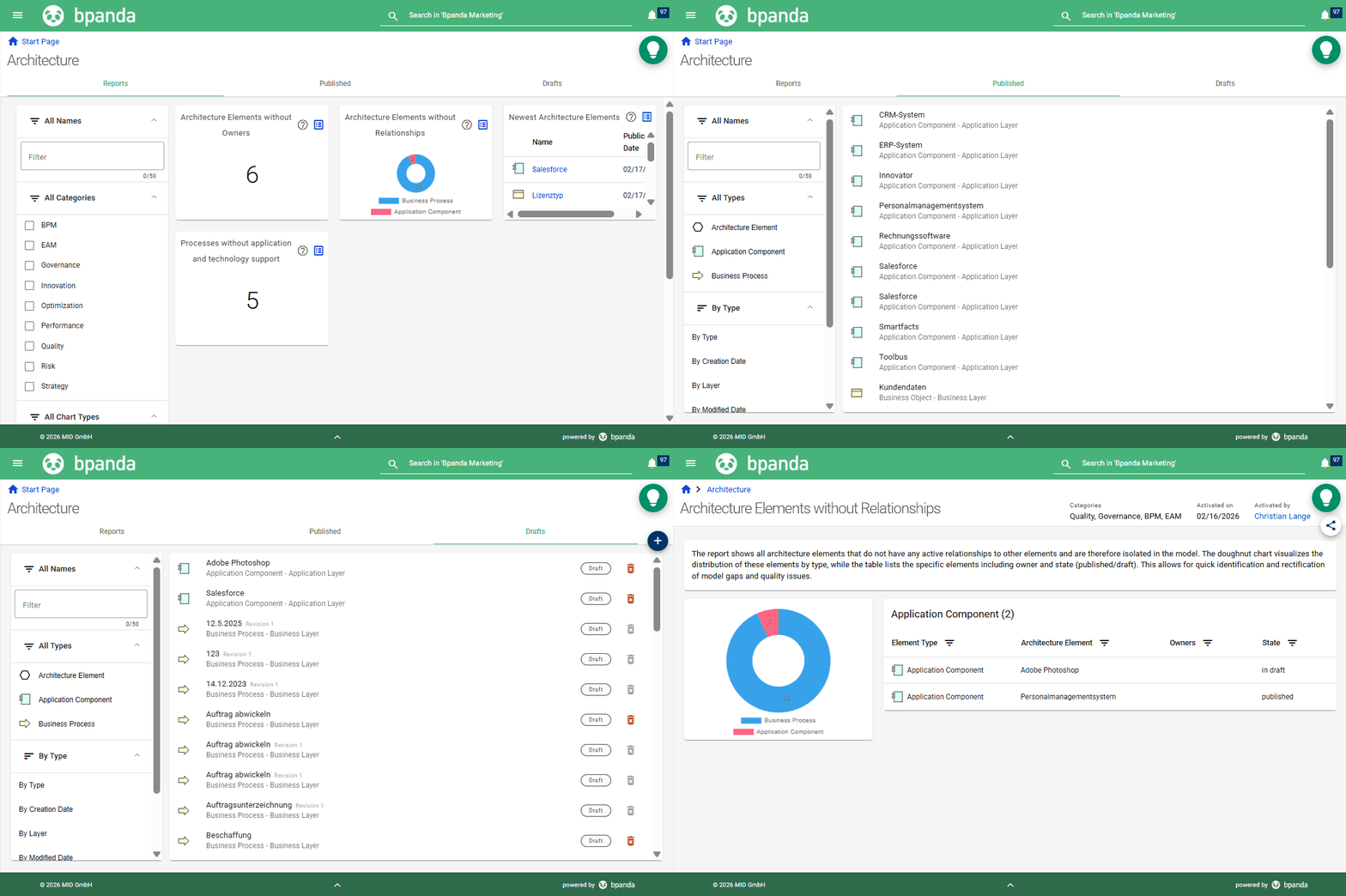
Architecture Dashboard
The previous applications dashboard is now the architecture dashboard in Bpanda. The dashboard contains a new filter area on the left-hand side. This allows you to filter the reports according to name, category, diagram type etc. Alongside the “Reports” tab, you can find a list of all “Published” architecture elements and all “Drafts” in tabs next to this. You can also filter these tabs. Please note that this dashboard normally only takes published architecture elements and valid processes into account. The dashboard shows you the four default activated reports. You can click on the small blue icon in the top-right of the tile to navigate to the detailed report. This contains all details (description, categories, date) and results of this report; you can also send a link to other Bpanda users to share it.
Architecture: Creating and Editing Architecture Elements
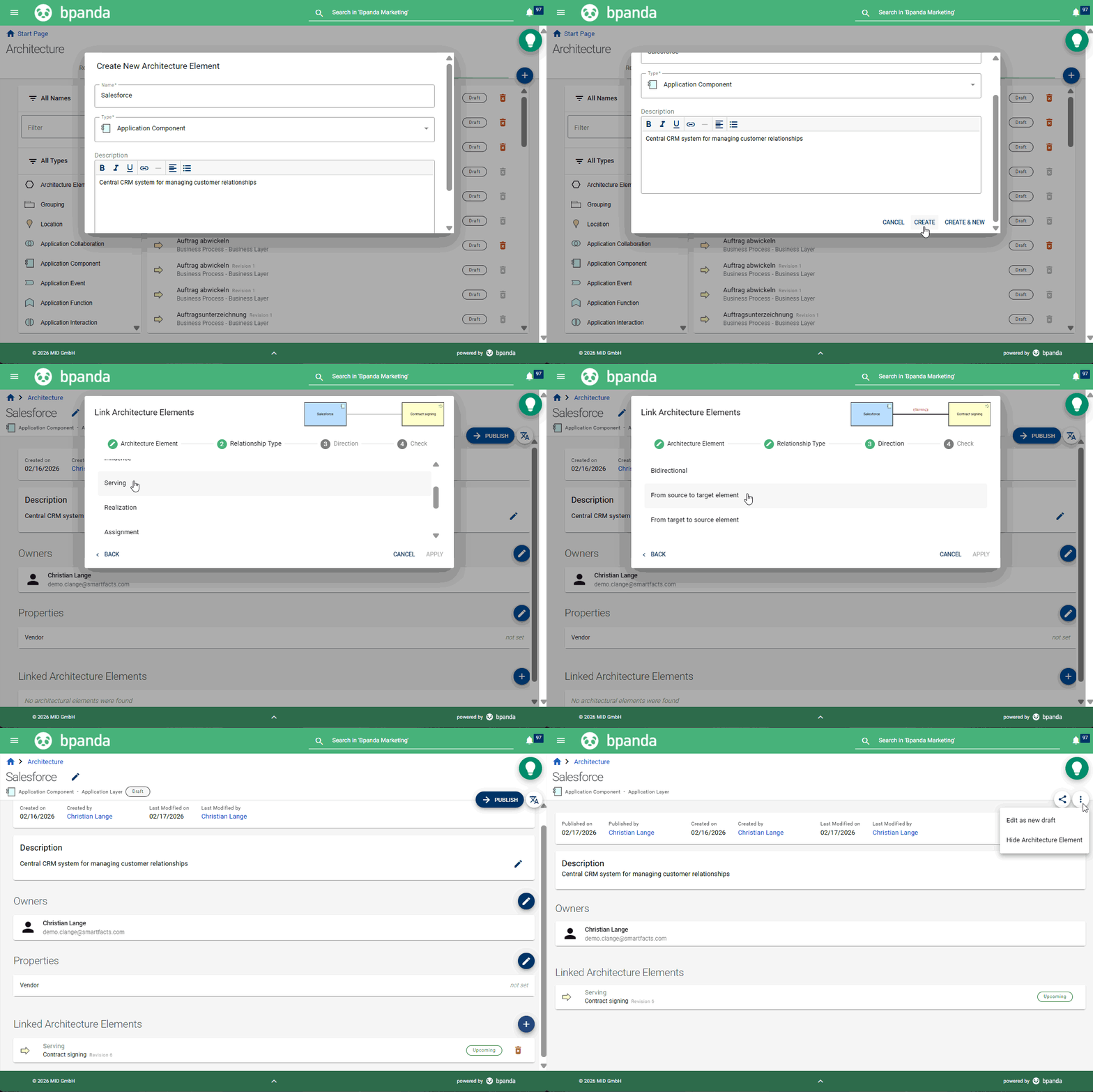
As BPM Manager or Process Designer, you can create new architecture elements in the “Drafts” tab in the architecture dashboard. Simply select the type of element and add name, details, owners, properties and relationships before publishing the element. Click on an element in the “Published” tab to show all details about it. As BPM Manager, Process Designer or Owner, you can also edit, show or hide the element. Click on “Edit as new draft” and add details to edit it You can also change the architecture element type. Then go ahead and republish the element.
Architecture: 6 Further
Reports Available
This release brings with it six further reports for Bpanda which you can activate in the architecture settings: Business Continuity Management Report, GDPR-Relevant Data Processing, Scoring by Digitalization Potential, Scoring by Digitalization Potential
Process Maturity Overview (CMMI) and Process Maturity Overview (Simple). Each report contains a description with its category and which architecture elements it requires. Activating a report automatically activates the required architecture elements. This means that you might have to add extra information to your processes so that the report can use the data. There are e.g. some additional process properties and categorizations for these six reports. These are shown as sections in the process overview and can be maintained there. You can see the reports in the architecture dashboard.
Process Drafts: New Handling
Process drafts are now treated differently in Bpanda. You still create new processes in the “Drafts” area. The draft view is now split into three tabs: Overview, Diagram and Translations. The filter options are now no longer in the drop-down menu, but can be easily found on the left-hand side.
Process Drafts: Overview
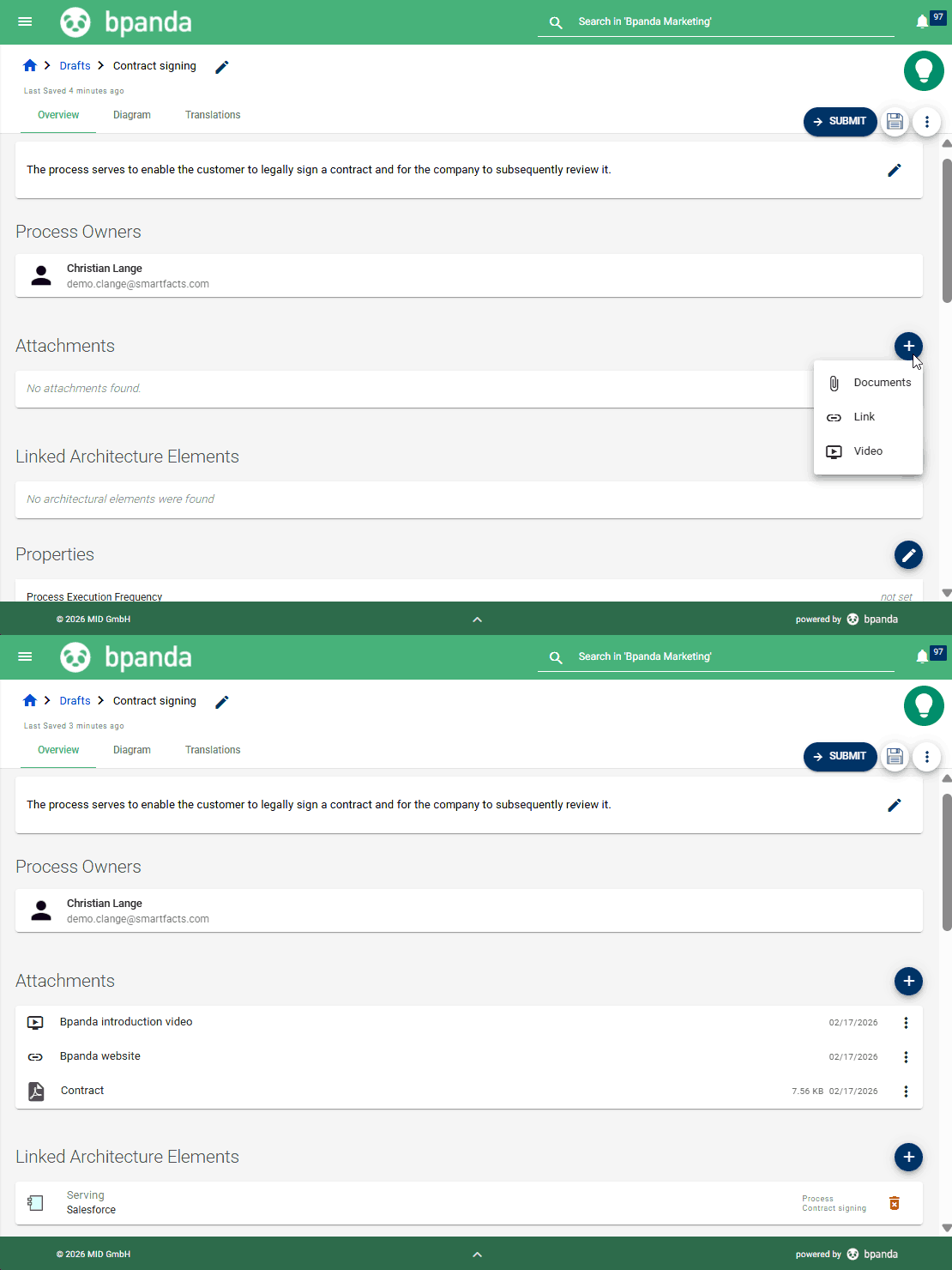
The overview looks like the later process overview. You can still rename the process and add a description. You should add as much information (attachments, architecture elements, process properties etc.) as possible to the draft as you can only modify or add to this information in draft mode. If you have activated any reports which require special information (e.g. whether the process has AI potential), then these fields are automatically shown in the process draft. If you want to e.g. add an attachment to a published process, then you first need to open it as a draft again, add the attachment and republish it. This increases traceability of process changes.
Process Drafts: Diagram and Translations
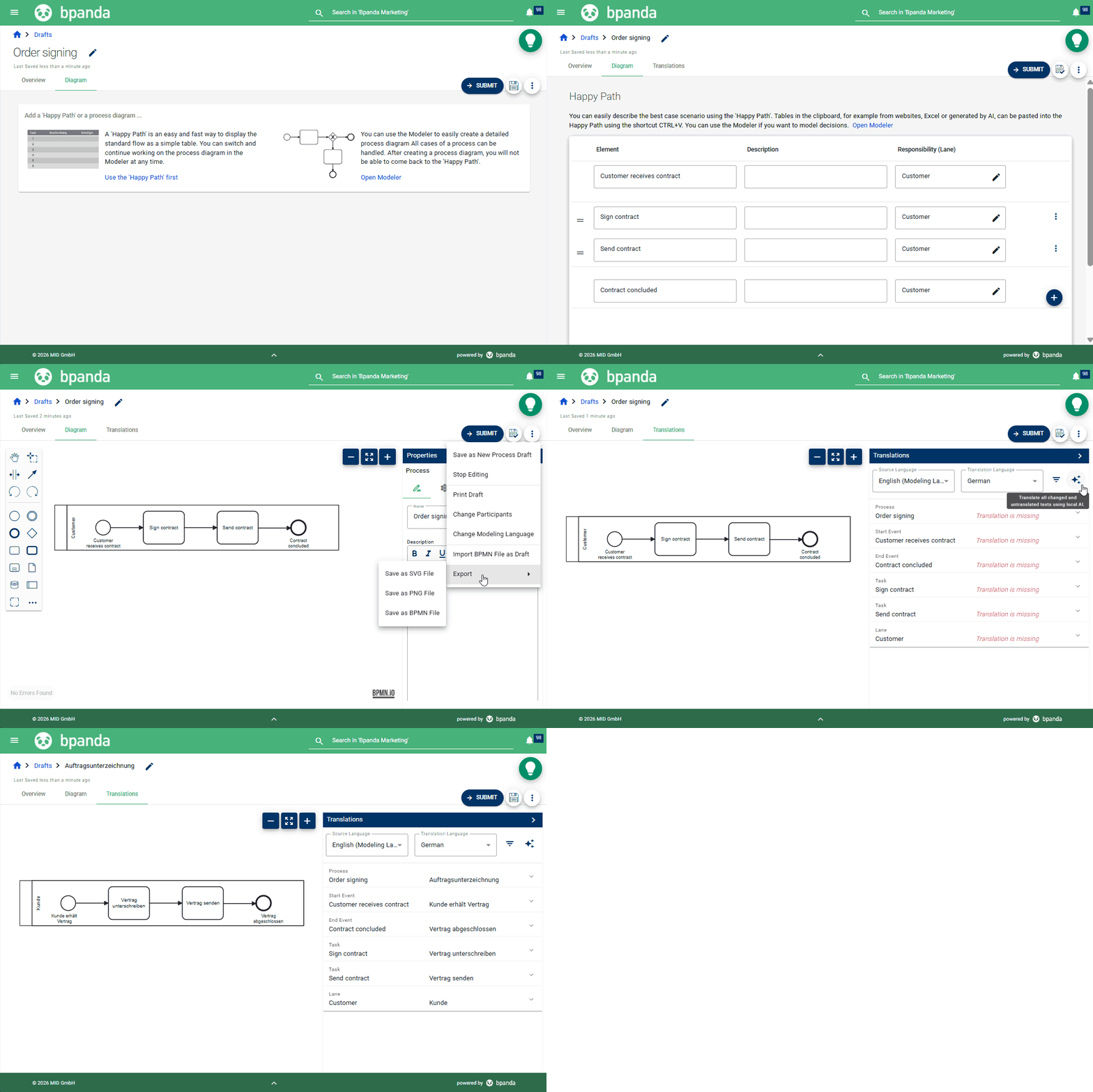
You still have the option of getting started with the Happy Path and then completing your diagram in the Modeler or modeling directly in the Modeler. The tab structure has changed slightly, so the menu looks a bit different. The Export functions can now be found in the three point menu. Translations are now even easier to find with their own tab. None of the actual functionality has changed. You can carry on translating the process and using the AI function (in Chrome only!) for translations.
We have also made a few small improvements and fixed a few small bugs which customers found in this release.
The role and organizational unit used to be able to be found in the search; it is now also possible to search for a combination of both of these, i.e. the role of a certain organizational unit, e.g. clerk (role) in order management (org. unit).
You can easily see how critical a risk is in the risk analysis thanks to our new color system with green, yellow and red. You can also filter risks and chances you have added to a process according to name, priority and date.
Info: These release notes apply to Bpanda Version 2026.01.